TL;DR Install the extension (
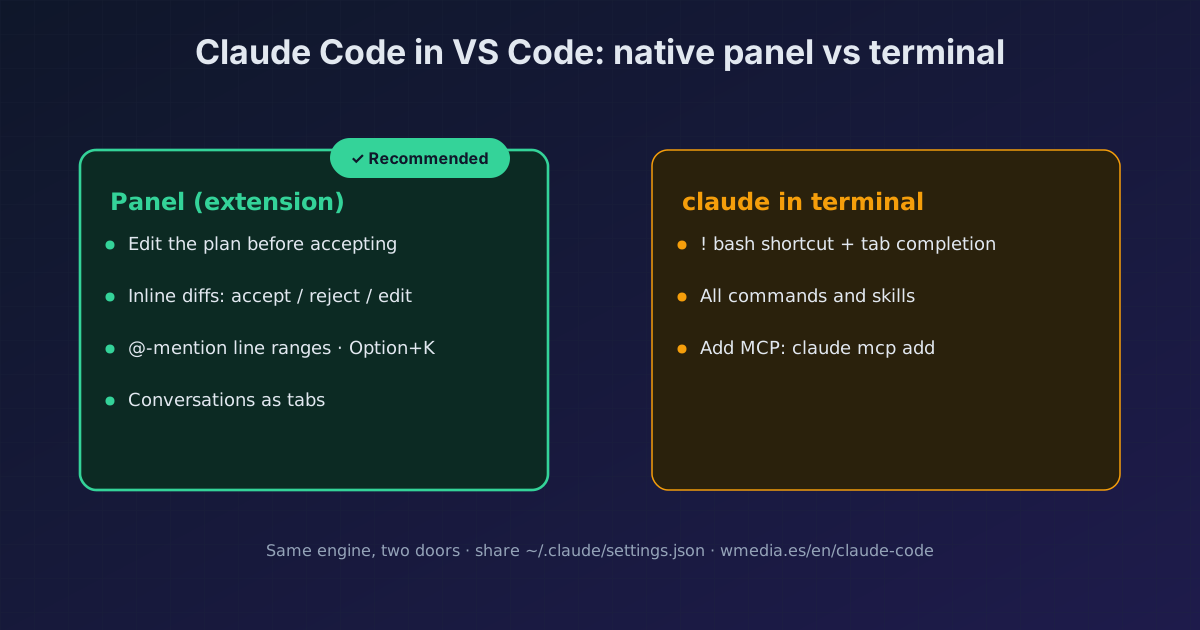
Cmd+Shift+X→ "Claude Code") and open the panel with the Spark icon. You gain inline diff review, @-mentions of exact line ranges withOption+K, and multiple conversations as tabs. You lose the!bash shortcut, tab completion, and part of the command set: for those,claudein the integrated terminal is still there.
Most people "use Claude Code in VS Code" by opening the integrated terminal and typing claude. It works, but you skip the interface Anthropic flags as the recommended one: a native graphical panel inside the editor. It's not the CLI tucked into a sidebar. It's a GUI that knows where your cursor is, opens diffs in VS Code's native viewer, and juggles several conversations at once.
One detail trips people up: the extension bundles its own copy of the CLI for the panel. The claude in your terminal (the one on your PATH) is a separate install. They share conversation history and settings (~/.claude/settings.json), but they're two different binaries. If you don't live inside VS Code, the equivalent is the standalone app: Claude Code Desktop.
┌── VS Code ──────────────────┐ ┌─ ✱ Claude Code (panel) ──┐
│ auth.ts                     │ │ > fix the login           │
│  ▸ diff login()      +6 -2  │ │   @auth.ts#10-18          │
│    + const token = sign(u)  │ │                           │
│    - return null            │ │ Plan ▸   ◐ auto-accept    │
│                             │ │ [ Accept ]   [ Reject ]   │
└─────────────────────────────┘ └───────────────────────────┘
What you gain over the terminal
1. Review (and edit) the plan before it touches anything
In Plan mode, the extension opens the plan as a full markdown document where you drop inline comments before Claude starts. Not a paragraph in the chat: an editable doc. For the rest of the prompt's mode selector (normal, plan, auto-accept), see the 6 permission modes; for why Plan mode is worth it, Plan Mode forces you to think.
2. Inline diffs in VS Code's native viewer
When Claude edits, you get a side-by-side comparison and decide: accept, reject, or tell it what to do instead. If you edit the proposed change inside the diff before accepting, Claude is told you modified it and stops assuming the file matches its original proposal.
3. @-mention exact line ranges
Select code and press Option+K (macOS) / Alt+K (Windows/Linux): it inserts a reference like @auth.ts#5-10. Claude already sees your selection automatically, and the prompt footer tells you how many lines. The eye-slash icon hides that selection when it shouldn't reach the context.
4. Multiple conversations as tabs, each with history
Open in New Tab (Cmd+Shift+Esc) or New Window: every conversation keeps its own context. A blue dot on the Spark icon means a permission request is pending; orange means Claude finished while the tab was hidden. The Session history button searches sessions by keyword or date, and if you use Claude Code on the web, the Remote tab pulls those claude.ai sessions into the editor.
What still sends you back to the terminal
The panel is a subset of the CLI. These stay terminal-only:
- The
!bash shortcut and tab completion don't exist in the panel. - The full command and skill set: the panel shows a subset (type
/to see which). - Adding a new MCP server is done with
claude mcp add; the panel only manages the ones you already have, with/mcp.
For any of those, open the integrated terminal (Cmd+` / Ctrl+`) and run claude. They share history, so claude --resume continues a conversation you started in the panel. Note: installing the extension does not put claude on your PATH; for the terminal you need the standalone CLI install.
Reference
| Panel (extension) | claude in terminal |
|
|---|---|---|
| Commands and skills | Subset | All |
| MCP | Manage (/mcp) |
Add + manage |
| Diffs | VS Code native viewer | As text |
! bash and tab completion |
No | Yes |
| Checkpoints / rewind | Yes | Yes |
Install: Cmd+Shift+X → search "Claude Code" → Install. Works the same in Cursor and forks like Kiro via Open VSX. Open it: the Spark icon (✱) in the editor corner when a file is open, in the Activity Bar, or ✱ Claude Code at the bottom-right (this last one works even with no file open).
Official docs: Use Claude Code in VS Code
Related: Claude Code in JetBrains · Claude Code Desktop: 5 features over the CLI · The 6 permission modes · Plan Mode forces you to think
Requirements
- VS Code 1.98 or higher
- A paid subscription (Pro, Max, Team, or Enterprise) or a Console account; no API key