TL;DR Press
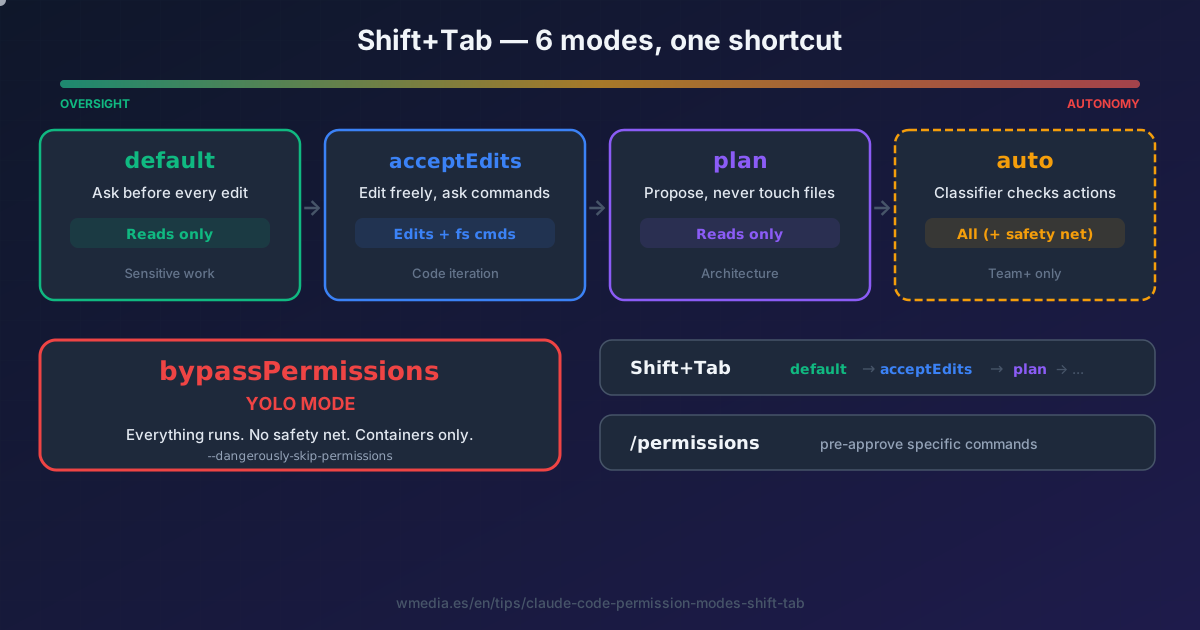
Shift+Tabto cycle between default, acceptEdits, plan, and auto. bypassPermissions (YOLO mode) still needs a flag. Combine with/permissionsto pre-allow specific tools. Most people only know two of the six modes — and confuse what acceptEdits actually approves.
This is one of those essential features that gets overlooked because it looks simple — a keyboard shortcut that cycles modes. But the decision of which mode to use when changes how you work with Claude Code fundamentally. And there's a common misconception: acceptEdits does NOT approve everything. It approves file edits and basic filesystem commands. All other Bash commands still prompt.
Six modes, from most restrictive to most autonomous. Each one is a different tradeoff between oversight and flow.
Result:
> Shift+Tab

auto  →  default  →  acceptEdits  →  plan  →  [bypassPermissions]  →  auto
 ↑                                                   ↑
 the built-in default                       only if you enable it
 since v2.1.283                             (containers only)
The six modes
1. default — Review everything
default — ask before every edit
Claude reads files freely but asks before every edit and every command. Use this when you're starting out, working on sensitive code, or don't trust the direction yet.
2. acceptEdits — Trust the edits, review the commands
acceptEdits — edit freely, ask for commands
Claude creates and edits files without prompting. Also auto-approves common filesystem commands: mkdir, touch, rm, rmdir, mv, cp, sed. All other Bash commands still ask.
The misconception: many people think acceptEdits means "approve everything." It doesn't. npm test, git push, curl — all still prompt. If you want to skip those prompts for specific commands without going full auto, you can set up deny rules and allow wildcards to fine-tune what Claude can touch.
3. plan — Look but don't touch
plan — research and propose, never touch files
Claude explores the codebase and proposes a plan. No source edits. The commands it runs to explore go through the auto mode classifier when auto is available (it is by default); otherwise, anything outside the read-only set prompts. Enter with Shift+Tab or prefix a single prompt with /plan.
When the plan is ready, Claude asks how to proceed: approve and switch to auto (or to accepting edits, if auto isn't available), approve and review each edit by hand, or keep planning.
For the deep dive — the five approval options, Ctrl+G to edit the plan in your editor, the defaultMode: "plan" per project, and the combo with /evaluate before and after — see Plan Mode doesn't make Claude smarter, it forces you to think.
4. auto — Claude decides what's safe
auto — background classifier checks every action
A separate classifier evaluates each action before it runs. Safe operations execute silently. Risky ones (deploys, mass deletion, force push, curl | bash) are blocked.
Requirements: every plan, Pro included. On the Anthropic API and Claude Platform on AWS, Opus 4.6 or later, Sonnet 4.6 or later, or a Fable model. On Bedrock, Agent Platform, and Foundry, only Sonnet 5 or later, Opus 4.7 or later, and the Fable models. It's available on every provider.
Since v2.1.283 it's the mode new sessions start in, in the terminal and in the VS Code extension, on any plan (before that, from v2.1.228, only on Pro, Max, and Team). If your organization turns it off with disableAutoMode, you start in Manual. With claude -p, sessions normally start in Manual.
For the classifier internals, conversational boundaries, and dropped allow rules, see Escape Claude Code's permission fatigue without going YOLO. For the brakes it added later (destructive git, a blind rm -rf, and transcript tampering), see Claude Code auto mode now protects you from yourself. And to write rules of your own alongside the built-in ones, see Claude Code auto mode rules: write your own in one plain sentence.
5. dontAsk — Only pre-approved tools
dontAsk — everything denied unless explicitly allowed
What runs is whatever wouldn't need approval in Manual (reads and read-only commands), whatever matches your permissions.allow rules, and whatever a PreToolUse hook approves. Everything else is denied without prompting. Designed for CI pipelines and locked-down scripts. If you're building skills that need to pre-approve their own tools without user intervention, allowed-tools in the skill frontmatter does the same per-skill.
claude --permission-mode dontAsk
Never appears in the Shift+Tab cycle — set it at startup only.
That "denied without prompting" bites in places you don't expect. With the Chrome extension connected, browser actions that would need your approval get skipped instead of becoming a prompt, so the task carries on without the click and without telling you: what saying yes to using your browser actually switches on.
6. bypassPermissions — YOLO mode
bypassPermissions — everything runs, no safety net
Disables permission prompts and safety checks, including writes to protected paths (.git, .zshrc, .claude), which no other mode ever approves on its own. Your ask rules, tools that require user interaction, and rm on critical paths (the root, your home, your working directory) still prompt. deny rules still block.
claude --dangerously-skip-permissions
# or equivalently:
claude --permission-mode bypassPermissions
Use only in containers, VMs, or sandboxed environments. No protection against prompt injection. No classifier. No guardrails. If you run this on your host machine, Claude can rewrite your .git or your .zshrc without asking. An rm -rf ~/ does still ask, but if nobody answers within two minutes it's denied and the session carries on. If you want that no-prompt flow but contained on your own machine, the OS-level sandbox raises an operating-system wall instead of removing the guardrails.
What counts as isolated, and why a container running as root won't start in this mode, is in this tip on --dangerously-skip-permissions.
It also has a side effect you won't see coming: a session in this mode holds messages sent to it by your other sessions until you approve each one by hand. The full rule is in messaging between sessions.
To add YOLO to the Shift+Tab cycle without activating it immediately:
claude --allow-dangerously-skip-permissions
I switched from YOLO to auto mode the day Auto shipped — most of YOLO's flow with a real safety net. See Escape Claude Code's permission fatigue without going YOLO for the full story.
Combine modes with /permissions
Modes set the baseline. /permissions lets you layer specific exceptions on top — pre-approve tools you run constantly so they never prompt, regardless of mode.
> /permissions
# Add allow rules like:
Bash(npm test)
Bash(git add *)
Bash(git commit *)
This is how you stay in default mode for safety but skip the prompt for your most common commands. The rules carry over between sessions and apply in every mode except bypassPermissions, where allow rules have no effect (deny rules still block and ask rules still prompt).
Building this list by hand is slow. If you'd rather have it written for you from your actual usage history, an official skill builds the allowlist for you.
That same Tool(pattern) syntax travels to hooks as well: the if field on a hook entry takes one of these rules and decides whether the hook is spawned at all. It filters rather than blocks, so it's no substitute for a deny: conditional hooks.
Reference
| Mode | Shift+Tab | Auto-approves | Best for |
|---|---|---|---|
default |
Yes | Reads only | Sensitive work, getting started |
acceptEdits |
Yes | Reads + file edits + filesystem commands | Code iteration |
plan |
Yes | Reads only (no edits) | Exploration, architecture |
auto |
Yes (the built-in default) | Everything (with classifier) | Long tasks, every plan |
dontAsk |
Never | Reads and pre-approved tools | CI, scripts |
bypassPermissions |
After opt-in | Everything except ask rules and rm on critical paths (no classifier) |
Containers, VMs only |
How to enter each mode
| Method | Example |
|---|---|
| Keyboard | Shift+Tab to cycle |
| CLI flag | claude --permission-mode plan |
| Default setting | "permissions": {"defaultMode": "acceptEdits"} in settings.json |
| Single prompt | /plan describe the auth flow |
With bypassPermissions as the default, the file matters: since v2.1.257 a project's .claude/settings.json ignores it and the session starts in Manual. Where it has to go now.
In the VS Code extension panel you switch modes by clicking the indicator at the bottom of the prompt, not with Shift+Tab. In JetBrains the plugin runs in the integrated terminal, so you keep cycling with Shift+Tab.
Modes control how much autonomy you grant Claude. How well Claude uses that autonomy depends on how you write the prompt. The 5 rules Anthropic recommends for structuring a prompt are orthogonal to mode and apply across all of them.
All of this is for the interactive session, where somebody is there to press a key. In claude -p nobody is, and the same modes behave differently without telling you.
Modes are one of five levers. How to combine them with rules, auto mode and the sandbox so Claude Code stops asking for permission without losing control is in this guide.
Official docs: Permission modes | Permissions reference