TL;DR Claude Code can open apps, click, type, and take screenshots — directly from your terminal. It compiles a Swift app, launches it, verifies buttons work, and goes back to the code to fix what fails. All in the same conversation.
Some tasks a terminal just can't solve: verifying a native app works visually, debugging a layout that only breaks at a certain window size, or interacting with an iOS simulator. Until now, that meant leaving Claude Code and doing it by hand.
Computer use changes that. It's a built-in MCP server called computer-use that gives Claude visual access to your screen. But it's not the first thing Claude tries — it's the last.
Claude only touches the screen when nothing else works
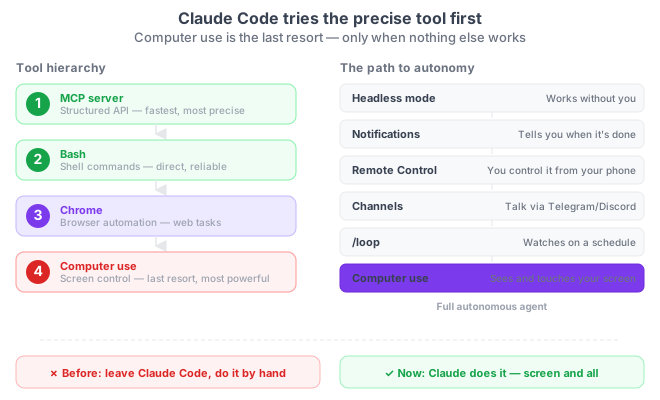
Claude Code has a clear tool hierarchy. It always uses the most precise tool available:
- MCP server — if there's an MCP server for the service, it uses that
- Bash — if the task is a terminal command, it executes it
- Chrome — if it's browser work and you have Chrome set up
- Computer use — only when none of the above work
Screen control is the nuclear option: powerful but slow. Claude reserves it for what nothing else can reach: native apps, simulators, tools without an API.
The missing piece in the autonomous agent
Computer use isn't an isolated feature. It's the last link in a chain Anthropic has been building for months — each piece reducing the distance between "I do" and "Claude does for me":
| Capability | What it solves |
|---|---|
| Headless mode | Claude works without you present |
| Notifications | Alerts you when it's done |
| Remote Control | Control it from your phone |
| Channels | Talk to it from Telegram/Discord |
| /loop | Watch on a recurring basis |
| Scheduled tasks: Desktop/Loop or Routines in cloud | Run tasks daily — with or without your machine |
| Computer use | Controls your screen when the terminal isn't enough |
The combination of all of them: an autonomous agent that works on your machine, contacts you through your preferred channel, and can now also see and touch your screen. If all of this feels scattered, the map of all 6 autonomous options places them in a 2×3 matrix and tells you which one to pick for each case.
How to enable it
1. Enable the MCP server
/mcp
Find computer-use in the list. Select it and choose Enable. Setting persists per project.
2. Grant macOS permissions
The first time, macOS will ask for two permissions:
- Accessibility: so Claude can click, type, and scroll
- Screen Recording: so Claude can see what's on your screen
3. Ask for something that needs a GUI
Build the MenuBarStats target, launch it, open preferences,
and verify the interval slider updates the label.
Screenshot when you're done.
Claude compiles, launches, interacts with the UI, and reports back.
Reference
| Aspect | Detail |
|---|---|
| MCP server | computer-use (built-in, disabled by default) |
| Enable | /mcp → select → Enable |
| Platform | macOS (CLI). Windows only in Desktop app |
| Plans | Pro and Max (not Team or Enterprise) |
| Minimum version | v2.1.85+ |
| macOS permissions | Accessibility + Screen Recording |
| App approval | Per session — Claude asks permission for each app |
| Stop | Esc anywhere or Ctrl+C in terminal |
| Hierarchy | MCP → Bash → Chrome → Computer use (last resort) |
Official docs: Computer use — Let Claude use your computer from the CLI
Requirements
- macOS (not available on Linux or Windows via CLI)
- Claude Code v2.1.85+
- Pro or Max plan (doesn't work with API key, Bedrock, Vertex, or Foundry)
- Interactive session (doesn't work with
-p)