TL;DR Since week 28, Claude Code Desktop ships its own browser:
Cmd+Shift+B, tabbed, and Claude can read it and drive it. It is not your Chrome. It starts on a clean profile with none of your logins and none of your history, and that single fact decides when to use it.
The most asked question about this on Google is literally the top result, a Reddit thread: "Is there a browser extension that lets Claude Code read the web?". The short answer is that there are three ways to give Claude Code a browser, and most people don't know which one they're asking for.
One thing before we go on: Desktop is not where I work. I live in the terminal. But I have used it, and more and more people around me are moving there, so it's hard not to keep half an eye on it. The reasons I think are genuinely good for making the jump are in five features worth leaving the terminal for. Today is a different question: what exactly this browser is, and what it is not.
What it is
A tabbed pane inside the app. Cmd+Shift+B on macOS, Ctrl+Shift+B on Windows, or the Views menu.
And yes, it's Chromium. The desktop app is Electron:
ls "/Applications/Claude.app/Contents/Frameworks/"
Claude Helper (GPU).app
Claude Helper (Plugin).app
Claude Helper (Renderer).app
Claude Helper.app
Electron Framework.framework
That Electron Framework.framework is the engine. So it isn't some odd webview or a browser written from scratch: it's the same Chromium you already use, packaged inside the app.
The pane already existed for previewing your app on localhost. What week 28 added is browsing external sites: docs, a Figma file, an issue tracker, whatever, sitting next to your running app.
You don't have to ask for it in words. Click an external link in the chat and you get a chooser: Open in app (the pane) or Default browser (your usual one). If you already know which you want, Cmd+click on macOS or Ctrl+click on Windows sends it straight to your system browser without asking. You can also sign in to sites inside the pane, popup flows like Google OAuth included.
What Claude can do in there
It's not a viewer for you to look at. Claude uses the same tools it uses to verify your app: it screenshots, inspects the DOM, clicks, fills forms.
What's different from what you already know are two brakes that only exist outside your localhost:
- Safety classifiers review every write action Claude takes (clicking, typing) in every permission mode. When one fires, you get a prompt even in a mode that normally doesn't ask.
- In any mode other than Auto and Bypass permissions, a domain allowlist check also runs before Claude navigates somewhere new.
The first time Claude acts on an external site, a card appears and Claude waits: Allow once, Always allow, or Deny. Always allow is saved per site on your machine, and every subdomain needs its own approval. Your local dev servers and project files ask for nothing, so auto-verify keeps running uninterrupted.
Some things it won't do even with permission: buy anything, create accounts, or work around a CAPTCHA.
What it is not
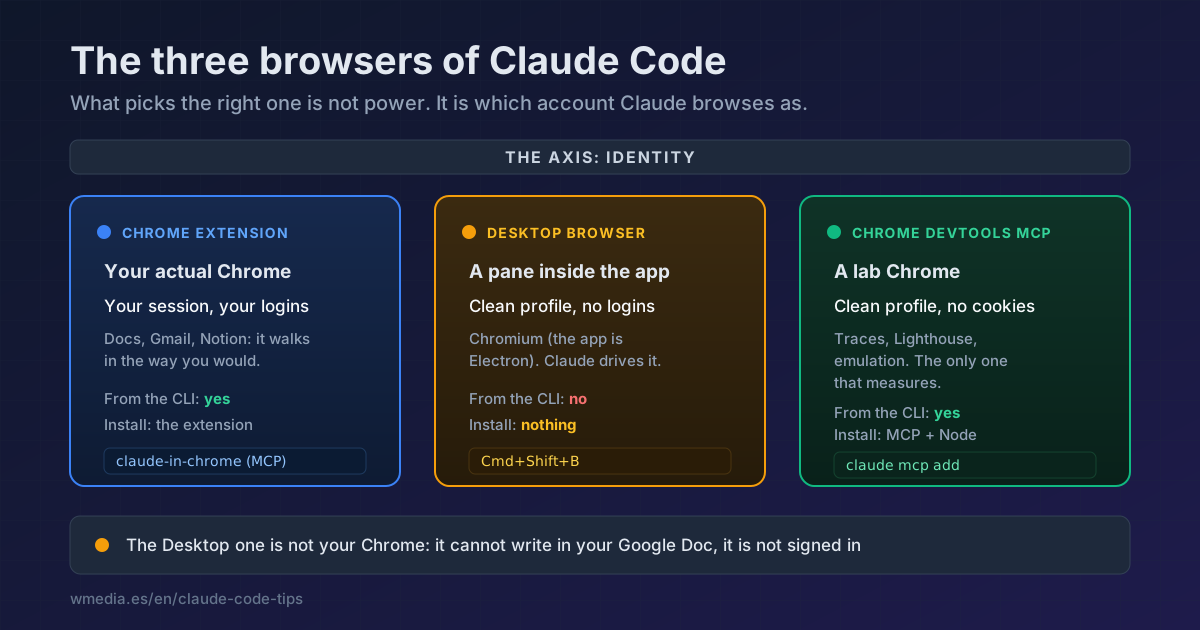
It is not your Chrome. That one line settles the whole decision. The pane starts on a clean profile, separate from your personal browser, with none of your logins and none of your history. Ask it to write in your Google Doc and it can't: it isn't signed in there.
It is not an MCP you can call from the terminal. The Chrome extension is one (it's the claude-in-chrome server, and its tools are named mcp__claude-in-chrome__*). This browser is stitched into the desktop app. From the CLI it doesn't exist.
It does not replace chrome-devtools-mcp. No performance traces, no Lighthouse, no heap snapshots, no mobile or slow-network emulation. If your job today is hunting an LCP problem, the DevTools MCP is still the tool, and that whole comparison lives in the Chrome extension versus the DevTools MCP.
The three, and how to pick
The axis that sorts this out isn't power, it's identity: which account Claude browses as.
| Claude in Chrome extension | Desktop browser | Chrome DevTools MCP | |
|---|---|---|---|
| Where it lives | Your real Chrome | A pane inside the app | Its own Chrome, launched by the MCP |
| Session | Yours, with your logins | Clean profile, no logins | Clean profile, no cookies |
| Who drives it | Claude, over MCP | Claude, with the app's tools | Claude, over MCP |
| Available from the CLI | Yes | No, Desktop only | Yes |
| Profiler, Lighthouse, emulation | No | No | Yes |
| Anything to install | Web Store extension | Nothing, it ships with it | claude mcp add + Node |
Translated into decisions:
- You want Claude to act as you (write in your Google Doc, your Gmail, your Notion): the Chrome extension. It's the only one with your session. Setup is in Claude Code and Chrome, and what the "use my browser" yes actually switches on, along with what your permission mode does with it, is in Chrome in Claude Code.
- You want to read docs or a Figma file while you build, without installing anything and without mixing it into your personal browser: the Desktop pane.
- You want to measure:
chrome-devtools-mcp. The Figma workflow is in the agent chasing pixel perfect.
Off that identity axis sits a fourth option answering a different question: if what you want is Claude checking its own change and fixing it without being asked twice, Playwright MCP works off the accessibility tree rather than screenshots, which is far cheaper in context.
Reference
| Setting | Where | What it does |
|---|---|---|
Cmd+Shift+B / Ctrl+Shift+B |
Shortcut | Opens the browser pane |
| Persist sessions | Server dropdown | Keeps cookies and localStorage across server restarts, so you don't re-login while developing |
autoVerify |
.claude/launch.json |
Claude verifies on its own after every edit. On by default; set it to false to disable per project |
browserExternalPageTools |
Managed setting | Admins switch off Claude's tools on external pages. You can still browse; Claude can't read or act |
disableBrowserExternalNavigation |
Managed setting | Blocks all external navigation, including your organization's allowlist. Localhost and file previews keep working |
Both managed settings really are in the app you have installed, not just in the docs:
strings -a "/Applications/Claude.app/Contents/Resources/app.asar" \
  | grep -oE "browserExternalPageTools|disableBrowserExternalNavigation" | sort -u
And if your organization already configured site lists for the Chrome extension, the pane respects them automatically: it's the same safety model.
Official docs: Browse external sites